


What is a layer?
Added: 31 Jan 2009. Working example for Java.
The Flash Player's display list is divided into numbered layers which define the order in which objects are displayed. Objects placed on a higher layer are displayed in front on an object on a lower layer.
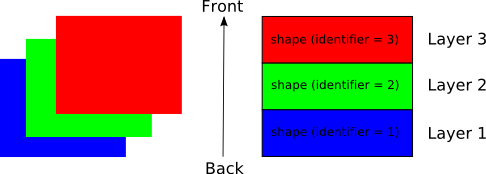
Only one object can be placed on a given layer at a time, though an object can appear on more than one layer at a time. When an object is placed on a layer it is always visible (unless hidden by another or moved off the visible area of the screen) until it is explicitly removed or replaced by another object.
Layer numbers used to order objects on the main display list are independent of the layer numbers used to organise the order of objects in composite objects such as movie clips and buttons.
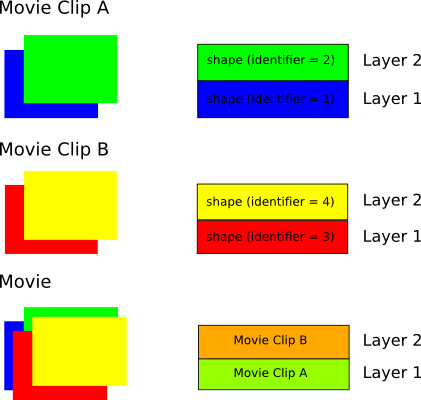
This means that if you have two movie clips each displaying objects on more than one layer you can place them on consecutive layers when you add them to the display list. You do not have to take the number of layers used in each into account.
Clipping Layers
An object placed on a layer may also be used to define a clipping path that will mask any object placed in front of it, up to and included a specified layer number.
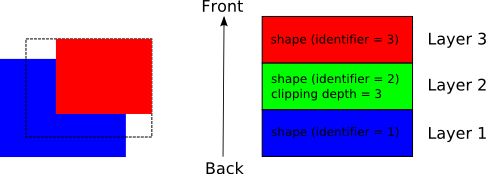
Here the green rectangle, shown in the first figure, is used to define the path that will clip the red rectangle displayed in front of it.
        int layer = 2;
        int clipTo = 3;

        movie.add(Place2.show(2, layer, x, y).setDepth(clipTo);
The outline of the object is used to define the clipping path (shown in the figure as dashed line). The object itself is not displayed. Only the parts objects that fall inside the clipping path will be displayed. Parts falling outside the clipping path are masked. Objects displayed on layer numbers greater than the clipping layer will be displayed normally.
Managing Layers
When creating a movie one approach is simply to build it frame by frame however this can get complicated very quickly if there are more than a small number of objects being displayed. Transform provides the Layer class which allows you to organise both the movie and the code used to create it. Separate Layer objects can be created for each object to be displayed then merged together to create the final Movie.